How to Use Discord Timestamps: The Complete 2026 Guide
If you run a Discord server with people scattered across the map, you already know the pain. You post "movie night at 8," and half the members show up an hour early while the other half miss it entirely. I've been there. For a long time I kept a mental note of everyone's timezone, which worked about as well as you'd expect. Then I learned about Discord timestamps, and honestly, it changed how I run my community.
Discord timestamps are little pieces of code that show a date or time in each person's own local timezone. You post one message, and everyone sees the correct time for them. No math, no confusion, no "wait, is that your time or mine?" This guide walks you through exactly how they work, every format you can use, and the small mistakes that trip people up.
TL;DR
- Discord timestamps use the format
<t:UNIX:STYLE>. UNIXis the seconds since Jan 1, 1970, andSTYLEis a single letter that sets the look.- They auto-convert to each viewer's timezone, so nobody has to do the math.
- The relative style
Rupdates live, which is perfect for countdowns. - The fastest way to make one is our Discord Timestamp Generator.
What Discord timestamps actually are
A Discord timestamp is a short code you type into a message. When you send it, Discord swaps the code out for a readable date or time. The clever part is that it reads the viewer's device settings, so a friend in Tokyo and a friend in London both see the same moment, just displayed in their own clock.
Under the hood, every timestamp is built on a Unix timestamp. That's just a count of seconds since a fixed starting point, midnight on January 1, 1970. Computers love this because it's one plain number with no timezone attached. Discord takes that number and paints it however you ask.
Why does this matter to you? Because it means a single line of text can carry a precise moment to hundreds of people without a single misunderstanding. That's a small feature with a big payoff.
The syntax, broken down
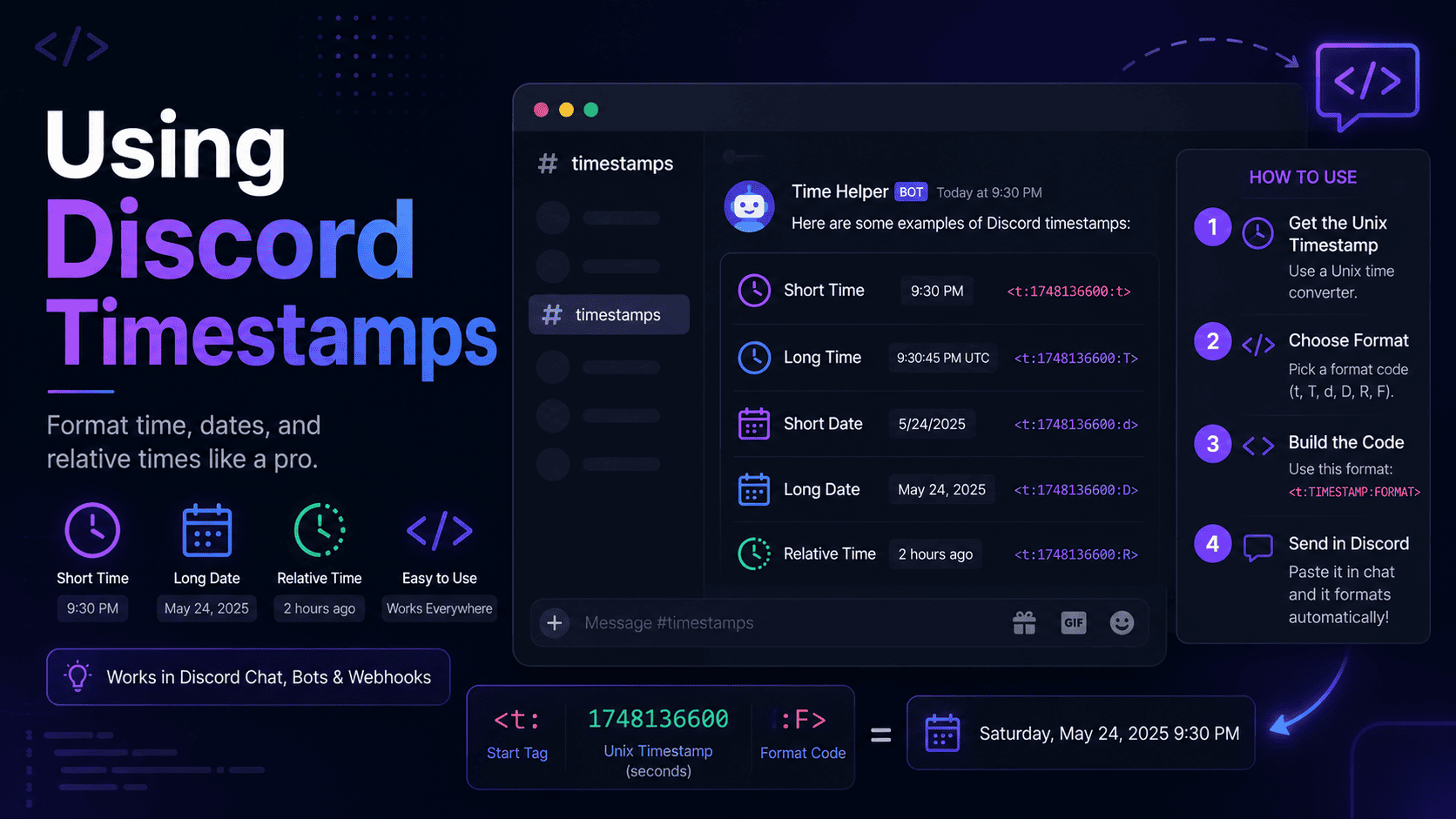
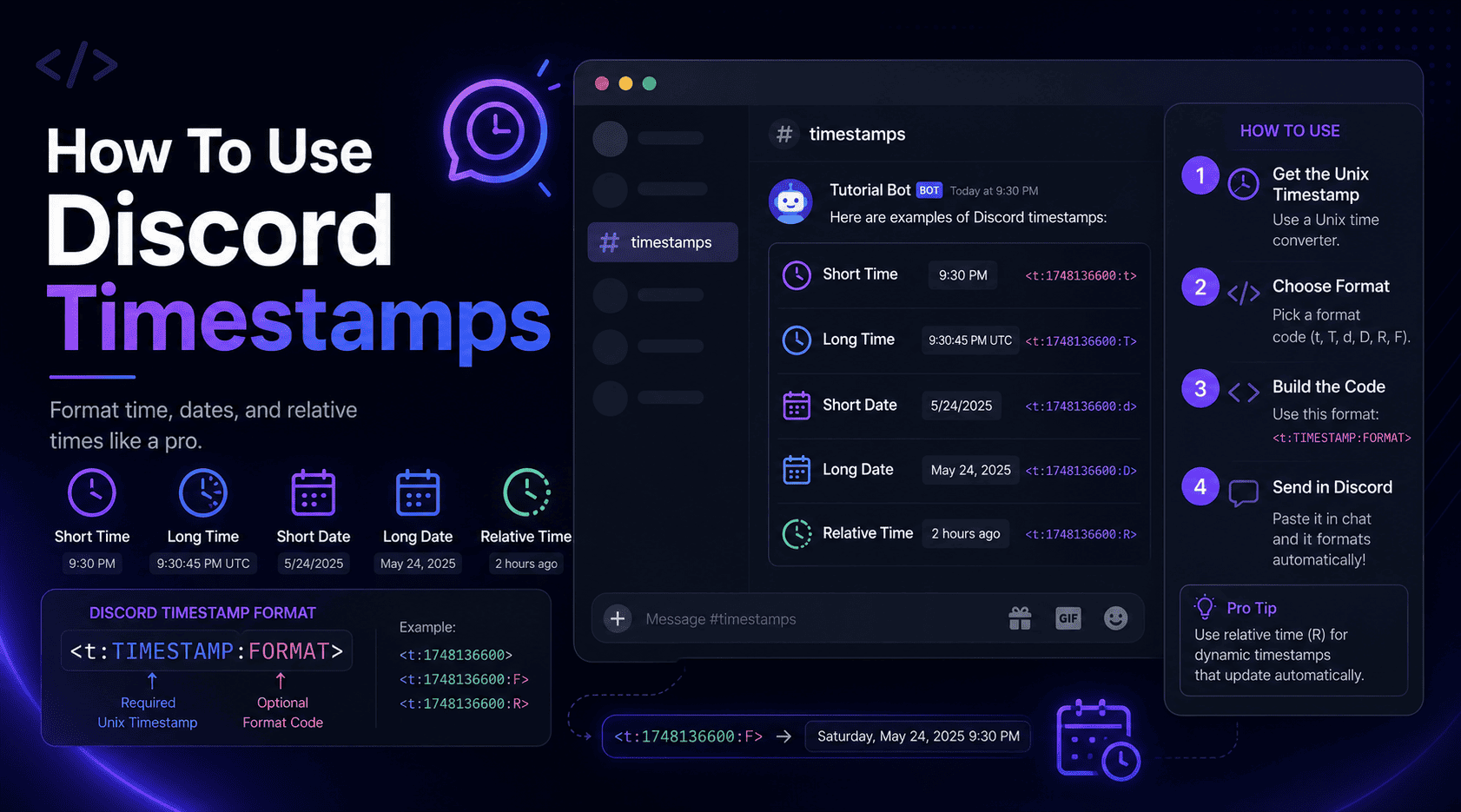
Here's the full shape of a timestamp:
<t:1700000000:F>Let's take it apart piece by piece:
<t:tells Discord "a timestamp is coming."1700000000is the Unix value, the actual moment in seconds.:Fis the style letter that decides how it looks.>closes the tag.
You can also drop the style and just write <t:1700000000>. When you do that, Discord
defaults to the short date and time style. I'd still recommend picking a style on purpose, because the
default isn't always the one you want.
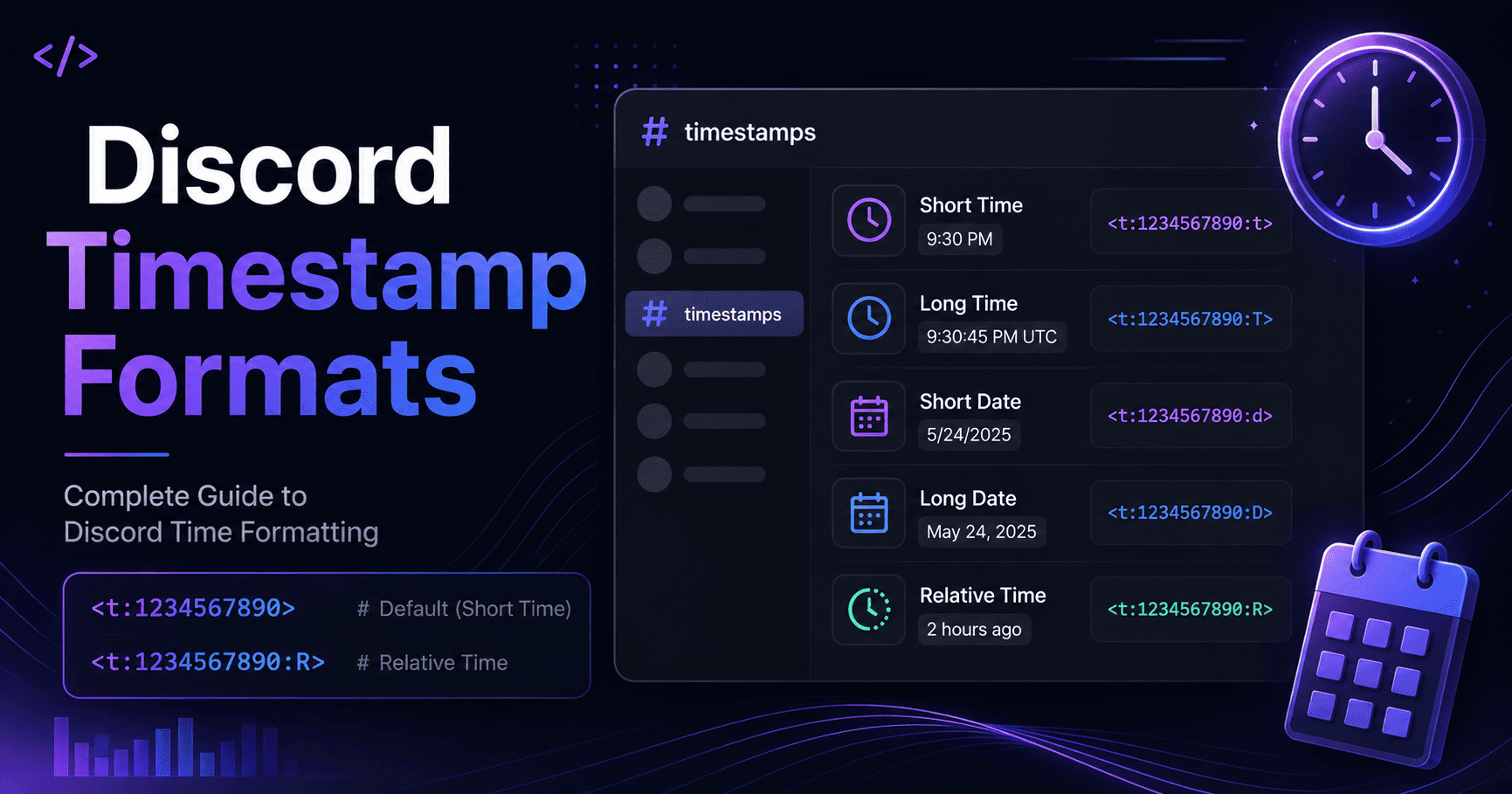
Every timestamp format with examples
Discord supports seven styles. Each one uses the same Unix value but shows it differently. The table below
uses 1700000000, which lands on November 14, 2023, around 22:13 UTC.
| Style | Code | Example output |
|---|---|---|
| Short Time | <t:1700000000:t> | 10:13 PM |
| Long Time | <t:1700000000:T> | 10:13:20 PM |
| Short Date | <t:1700000000:d> | 11/14/2023 |
| Long Date | <t:1700000000:D> | November 14, 2023 |
| Short Date/Time | <t:1700000000:f> | November 14, 2023 10:13 PM |
| Long Date/Time | <t:1700000000:F> | Tuesday, November 14, 2023 10:13 PM |
| Relative | <t:1700000000:R> | 2 years ago |
When to use each style
Picking the right style is half the battle. For a quick "starts at" note, short time (t) keeps
things clean. For a formal event announcement, the long date and time (F) spells everything out
and leaves no room for doubt.
My personal favorite is the relative style. Here it is on its own:
<t:1700000000:R>That one renders as something like "in 3 hours" or "2 days ago," and it keeps ticking on its own. Drop it into a giveaway post and members can glance at it to see how long is left, without you ever touching the message again. It does a lot of heavy lifting for a single letter.
How to make a timestamp step by step
You've got two roads here: do it by hand, or let a tool handle it. I'll be straight with you, the tool wins almost every time.
The easy way
Head over to our Discord Timestamp Generator and follow these steps:
- Pick your date on the calendar.
- Set the time.
- Choose a format from the dropdown.
- Hit generate and copy the code.
The generator reads your local timezone, shows a live preview of how the message will look, and hands you a copy-ready code in seconds. Paste it into Discord and you're done.
The manual way
If you'd rather understand the guts of it, you need to turn your date and time into a Unix value. You can find that number with a quick search for "unix time converter," then slot it into the format like this:
<t:YOUR_NUMBER:F>It works, but it's fiddly and easy to get wrong, especially around timezones and daylight saving. For a one-off it's fine. For anything you post regularly, save yourself the trouble.
Common mistakes to avoid
I've made most of these myself, so learn from my scars instead of your own.
- Using milliseconds instead of seconds. Discord wants seconds. If your number has 13 digits, it's in milliseconds and will point to some wild future date. Chop the last three digits.
- Forgetting the timezone offset. If you convert a time as UTC when you meant local, everyone sees it shifted. This is the single biggest source of "wrong time" complaints.
- Leaving out the closing bracket. A missing
>means Discord shows the raw code instead of a nice date. Small typo, big letdown. - Wrapping the code in a code block. If you put backticks around it, Discord treats it as literal text and won't render it. Post it as plain text.
None of these are hard to fix once you know them. The trick is catching them before you hit send, which brings me to the tips. If a code still refuses to work, our guide on how to fix a Discord timestamp not working walks through every error one by one.
Pro tips and best practices
Once you've got the basics down, these small habits make a real difference.
- Pair two styles together. Write the full date and the relative countdown side by side, like
<t:1700000000:F>then(<t:1700000000:R>). Readers get the exact time and the "how soon" at a glance. - Preview before you post. Always check the render, especially for scheduled events. Two seconds of checking beats a wave of confused pings.
- Use relative for anything live. Countdowns, giveaways, and streams all shine with the
Rstyle because it updates itself. - Keep announcements short. A timestamp already carries the timezone info, so you don't need to write "8 PM EST / 5 PM PST." Let the code do the talking.
Here's the bottom line: timestamps are one of those features that seem tiny until you use them, and then you wonder how you ever managed without. They turn timezone headaches into a non-issue, which is worth its weight in gold when your community spans continents.
Wrapping up
Discord timestamps solve a real, everyday problem with almost no effort. Once you understand the
<t:UNIX:STYLE> format and the seven styles, you can drop a perfectly clear time into any
message and trust that everyone reads it correctly. Start with the relative style for events, keep an eye out
for the milliseconds mistake, and preview before you post.
Ready to try it? Open the Discord Timestamp Generator, pick a date, and grab your first timestamp. It takes about ten seconds, and your members will thank you for it.
Frequently asked questions
What is a Discord timestamp?
It's a code that displays a date or time in each viewer's local timezone. It uses the syntax
<t:UNIX:STYLE>, where the Unix value is seconds since 1970 and the style sets the look.
Do Discord timestamps update automatically?
Yes. They convert to local time for every viewer, and the relative style keeps counting up or down without you editing anything.
Why is my Discord timestamp showing the wrong time?
Usually it's a wrong Unix value or a timezone slip. Use a generator that reads your local time and check the preview before posting. Our Discord timestamp generator tool does both.
Can I use timestamps on the mobile app?
Absolutely. They render the same on desktop, web, and mobile. Paste the same code and Discord handles the rest on any device.